# Configure an Escalation

## Overview

The "Configure Escalation" menu is divided into 5 elements.

<div data-full-width="true"><figure><img src="https://3489494878-files.gitbook.io/~/files/v0/b/gitbook-x-prod.appspot.com/o/spaces%2F9GvUpaatBiReR43XFSMg%2Fuploads%2Fu0sBf4BazeG5cqogDoVR%2F3D15FC22-AF8C-4714-A866-6168D307FF0C.png?alt=media&#x26;token=542fc1af-51a8-4180-9c6f-aca857c17004" alt=""><figcaption><p>Fig. 1 – The "Configure Escalation" menu in an empty state</p></figcaption></figure></div>

<table><thead><tr><th width="74.33333333333331"></th><th width="170"></th><th></th></tr></thead><tbody><tr><td><strong>[A]</strong></td><td>Escalation Name</td><td>Here you can adjust the name of the escalation afterward</td></tr><tr><td><strong>[B]</strong></td><td>General Calendar</td><td>Here you select the General Calendar.</td></tr><tr><td><strong>[C]</strong></td><td>Tags for Escalating</td><td>Here you specify which alarms are escalated.</td></tr><tr><td><strong>[D]</strong></td><td>Tags with Users and Destinations</td><td>Here you specify to which users an alarm is escalated.</td></tr><tr><td><strong>[E]</strong></td><td>Calendars and Schedules</td><td>Here you see details and can make further adjustments</td></tr></tbody></table>

## 1 – Add General Calendar

### 1.1 – Overview

In this step, you select **WHEN** an alarm should be escalated.

This is done by selecting 1 or more *General Calendars*. Alarms are only escalated on dates that are selected in these calendars.

The *General Calendars* are selected in **Element \[B]**. In Fig. 2, 1 General Calendar **\[B7]** has been added. The dates that have been selected in the calendar are also displayed.

{% hint style="info" %}
If no general calendar exists: Here you can learn how to [-> create a General Calendar.](/collection/platform/platform-core/alert-and-escalation/escalations/create-a-general-calendar.md)
{% endhint %}

After a calendar has been added, a **timeline \[E1]** appears in **Element \[E]**. Using this timeline, you can also read when the alarm is escalated. In Fig. 2, for example, a break has been inserted on November 1st. This means that no escalations would take place on November 1st.

<div data-full-width="true"><figure><img src="https://3489494878-files.gitbook.io/~/files/v0/b/gitbook-x-prod.appspot.com/o/spaces%2F9GvUpaatBiReR43XFSMg%2Fuploads%2FoXVNBEwVKLXtrjK0mkSC%2F1F5614EE-052E-41A4-B04C-AD4412B30D56.png?alt=media&#x26;token=a5fb20d2-1327-4033-9f63-aa54dc8854b0" alt=""><figcaption><p>Fig. 2 – Selection of a General Calendar</p></figcaption></figure></div>

### 1.2 – Step-by-Step Guide

1. Click on **\[B1]** to add a General Calendar

   ▷ The window **\[B2]** appears
2. In **\[B3]**, select a General Calendar

   ▷ The selected calendar is displayed in **\[B4]**

   ▷ In **\[B6]**, you see the validity dates for the added General Calendar
3. Optional: Select other General Calendars
4. Click on **Add \[B6]**

***

## Step 2 – Tags for Escalating

<div data-full-width="true"><figure><img src="https://3489494878-files.gitbook.io/~/files/v0/b/gitbook-x-prod.appspot.com/o/spaces%2F9GvUpaatBiReR43XFSMg%2Fuploads%2F70ceeaGR8knrD2s0owq6%2F22E396DA-E034-4F48-A9D5-0C36D98531BD.png?alt=media&#x26;token=2a972ab7-1416-4f2e-b4cb-8d0da7f5edf4" alt=""><figcaption></figcaption></figure></div>

#### 2.1 – Overview

In this step, you determine **which** alarms are escalated.

To do this, you use [-> tags.](/collection/mandatory-base/platform-core/workspace-and-identity/tags.md)

As described in the [-> Alarms](/collection/platform/alert-center/alarms.md) chapter, every alarm is based on a [-> rule](/collection/platform/alarms-rules-and-escalations/rules.md). You can assign 1 or more tags to rules.

In window **\[C]**, you can specify 1 or more tags. Only alarms that were triggered via a rule that has the same tags that were also specified in window **\[C]** are escalated.

#### 2.2 – Step-by-Step

1. Click on **\[C1]** to add one or more tags for escalation
2. Added tags appear in element **\[C]**

***

## Step 3 – Tags with Users and Destinations

<div data-full-width="true"><figure><img src="https://3489494878-files.gitbook.io/~/files/v0/b/gitbook-x-prod.appspot.com/o/spaces%2F9GvUpaatBiReR43XFSMg%2Fuploads%2FkyecB9o90aDbAr2N0jhk%2F7A5D3F9E-B6E7-4AD2-AFCB-AC8312880EBE.png?alt=media&#x26;token=3f8c108f-488b-4daa-8fdf-20c56d2c3e74" alt=""><figcaption></figcaption></figure></div>

### 3.1 – Overview

In this step, you choose to which users the alarm should be escalated.

Just as with alarms, you use [-> tags](/collection/mandatory-base/platform-core/workspace-and-identity/tags.md) for this.

In window **\[D]**, you can specify 1 or more tags. Users who have been assigned this tag are then added.

Alarms are escalated to these users.

### 3.2 – Step-by-Step

1. Click on **\[D1]**

   ▷ The window **\[D2]** opens
2. Under **\[D3]**, select tags
3. Click on **\[D4]**

   ▷ All users who have the selected tags appear in **Element \[D]**

   ▷ All users who have the selected tags appear in **Element \[E]**

***

## Step 4 – Select Escalation Channel

<div data-full-width="true"><figure><img src="https://3489494878-files.gitbook.io/~/files/v0/b/gitbook-x-prod.appspot.com/o/spaces%2F9GvUpaatBiReR43XFSMg%2Fuploads%2FT8p2WC1gShLa7P67EnN8%2FE42B8B62-AE5F-4C16-9B5E-CF70DFD69E93.png?alt=media&#x26;token=d087febe-95db-4cbb-8316-a05e3ad30207" alt=""><figcaption></figcaption></figure></div>

### 4.1 – Overview

In this step, you determine on which escalation channel alarms are escalated to a user.

This can be set individually for each user.

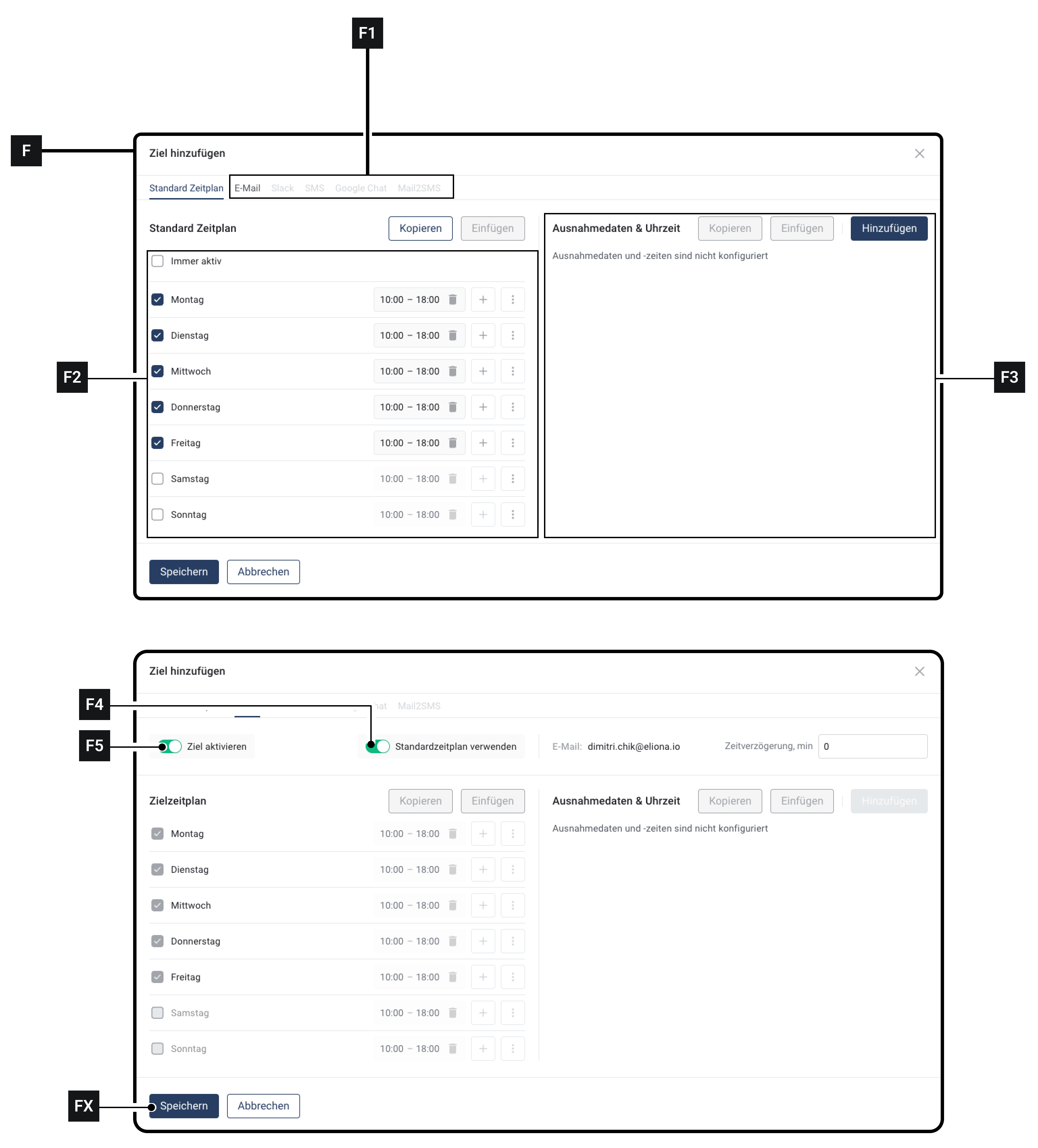
### 4.2 – Step-by-Step

1. For the user for whom you want to select the escalation channel: Click on **Edit schedule \[D6]**

   ▷ The window **\[F]** opens

   ▷ In the row **\[F1]**, you see all escalation channels. Unavailable escalation channels are grayed out
2. Click on the desired escalation channel
3. Make sure that the switch **\[F5]** is activated
4. Click on **Save \[FX]**
5. Click on **\[D5]** to test the escalation

***

## Step 5 – Schedules

### 5.1 – Overview

You can customize a precise schedule for each user to whom an alarm is escalated. This schedule refines the [-> General Calendar.](/collection/platform/platform-core/alert-and-escalation/escalations/create-a-general-calendar.md)

The schedules can be configured individually for each user and each escalation channel.

This makes it possible to notify a user, for example, both by mail and by SMS during normal working hours, but only by mail after working hours.

A separate schedule can be created for each escalation channel, or a standard schedule can be used.

This is the standard schedule for this user. This schedule ONLY APPLIES TO THIS USER!

It should not be confused with the General Calendar.

### 5.2 – Customize Standard Schedule

1. For the user for whom you want to customize the schedule: Click on **Edit schedule \[D6]**

   ▷ The window **\[F]** opens

   ▷ In the row **\[F1]**, the Standard Schedule tab is selected.
2. In field **\[F2]**, you can adjust the standard schedule.
3. In field **\[F3]**, you can add exceptions.
4. Click on **Save \[FX]** to apply the standard schedule.

### 5.3 – Apply Standard Schedule to an Escalation Channel

1. For the user for whom you want to apply the standard schedule: Click on **Edit schedule \[D6]**

   ▷ The window **\[F]** opens

   ▷ In the row **\[F1]**, you see all escalation channels. Unavailable escalation channels are grayed out
2. Click on the desired escalation channel
3. Make sure that the switch **\[F5]** is activated
4. Activate the switch **\[F4]**

   ▷ The **\[F2]** area is grayed out

   ▷ In the **\[F2]** area, the values you configured in [-> 5.2 Customize Standard Schedule](#id-5.2-customize-standard-schedule) appear
5. Click on **Save \[FX]**
6. Repeat this process for each escalation channel to which you want to apply the standard schedule

### 5.4 – Apply Individual Schedule for an Escalation Channel

You can use an individual schedule for each escalation channel.

1. For the user for whom you want to apply the standard schedule: Click on **Edit schedule \[D6]**

   ▷ The window **\[F]** opens

   ▷ In the row **\[F1]**, you see all escalation channels. Unavailable escalation channels are grayed out
2. Click on the desired escalation channel
3. Make sure that the switch **\[F5]** is activated
4. Make sure that the switch **\[F4]** is deactivated
5. In **Area \[F2]**, configure the individual schedule

   ◈ This individual schedule only applies to the escalation channel in which it was configured!
6. Optional: Repeat the process for all desired escalation channels


---

# Agent Instructions: Querying This Documentation

If you need additional information that is not directly available in this page, you can query the documentation dynamically by asking a question.

Perform an HTTP GET request on the current page URL with the `ask` query parameter:

```
GET https://docs.buildings.ability.abb/collection/platform/platform-core/alert-and-escalation/escalations/configure-an-escalation.md?ask=<question>
```

The question should be specific, self-contained, and written in natural language.
The response will contain a direct answer to the question and relevant excerpts and sources from the documentation.

Use this mechanism when the answer is not explicitly present in the current page, you need clarification or additional context, or you want to retrieve related documentation sections.