> For the complete documentation index, see [llms.txt](https://docs.buildings.ability.abb/collection/llms.txt). Markdown versions of documentation pages are available by appending `.md` to page URLs; this page is available as [Markdown](https://docs.buildings.ability.abb/collection/platform/platform-core/alert-and-escalation/escalations/notification-provider/google-chat.md).
# Google Chat
## Google Chat Notifications in BuildingPro Suites
The **Google Chat** notification provider in BuildingPro Suites enables the configuration and management of notifications that are delivered directly in a Google Chat room or group. This is particularly helpful for forwarding alarms and other important information to teams in real time.
***
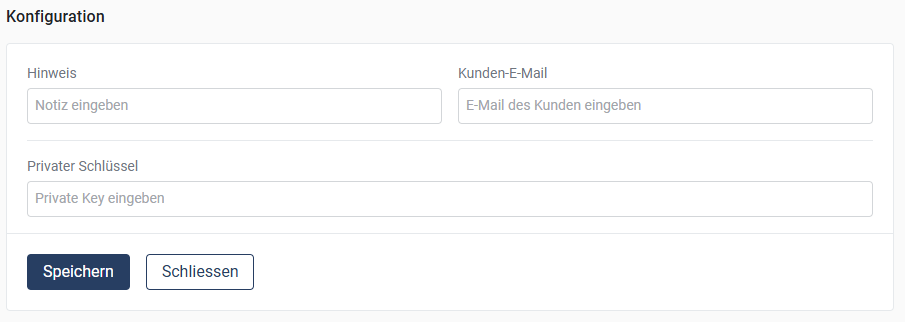
## Configuration
1. **Note:** Enter a note or description that is relevant for the configuration. This could be the name of the Google Chat room, for example.
2. **Customer email:** Enter the customer's email address that is used for the Google Chat notifications.
3. **Private key:** Enter the private key that is required for authentication with Google Chat. This key must be in JSON format and provided by your Google Workspace administrator.
4. **Save:** Click on **"Save"** to apply the configuration.
***
## Combining Alarms
Alarms can also be grouped here as with other notification providers.
{% content-ref url="/pages/IcUjCEYEjWrNej1igYET" %}
[Group Escalations](/collection/platform/platform-core/alert-and-escalation/escalations/group-escalations.md)
{% endcontent-ref %}
***
## Google Chat Templates
BuildingPro Suites offers the possibility to customize individual templates for Google Chat notifications. These templates define what the text style, structure, and content of the notification look like.
{% content-ref url="/pages/lUdHpKau2od0aDuILzYr" %}
[Twig Templating in BuildingPro Suites](/collection/academy/twig-templating-in-eliona.md)
{% endcontent-ref %}
1. **Customize template:** Navigate to your Google Chat template and click on .
2. **Override standard:**
* Activate the **"Override standard"** option to make individual changes to the template.
* As soon as this option is active, you can edit the notification text.
3. **Edit format & style:** The Google Chat text can be customized to make the desired message clear and easy to understand. **Example for an alarm text:**
```csharp
BuildingPro Suites Alarm: {{asset.name}} ({{asset.gai}}) - {{alarm.msg}}
{% if alarm.gone_ts is null %}https://{{domain_name}}/alarms?alarm_id={{alarm.alarm_id}}
{% else %}https://{{domain_name}}/alarms/history{% endif %}
```
4. **Save:** Click on **"Save"** to apply the changes. All future notifications will then use the customized template.
---
# Agent Instructions
This documentation is published with GitBook. GitBook is the documentation platform designed so that both humans and AI agents can read, navigate, and reason over technical content effectively. Learn more at gitbook.com.
## Querying This Documentation
If you need additional information that is not directly available in this page, you can query the documentation dynamically by asking a question.
Perform an HTTP GET request on the current page URL with the `ask` query parameter, and the optional `goal` query parameter:
```
GET https://docs.buildings.ability.abb/collection/platform/platform-core/alert-and-escalation/escalations/notification-provider/google-chat.md?ask=&goal=
```
`ask` is the immediate question: it should be specific, self-contained, and written in natural language.
`goal` is optional and describes the broader end goal you are ultimately trying to accomplish on behalf of the user. GitBook uses it to tailor the answer towards what is most useful for that goal.
The response will contain a direct answer to the question and relevant excerpts and sources from the documentation.
Use this mechanism when the answer is not explicitly present in the current page, you need clarification or additional context, or you want to retrieve related documentation sections.

 .
2. **Override standard:**
* Activate the **"Override standard"** option to make individual changes to the template.
* As soon as this option is active, you can edit the notification text.
3. **Edit format & style:** The Google Chat text can be customized to make the desired message clear and easy to understand. **Example for an alarm text:**
```csharp
BuildingPro Suites Alarm: {{asset.name}} ({{asset.gai}}) - {{alarm.msg}}
{% if alarm.gone_ts is null %}https://{{domain_name}}/alarms?alarm_id={{alarm.alarm_id}}
{% else %}https://{{domain_name}}/alarms/history{% endif %}
```
4. **Save:** Click on **"Save"** to apply the changes. All future notifications will then use the customized template.
---
# Agent Instructions
This documentation is published with GitBook. GitBook is the documentation platform designed so that both humans and AI agents can read, navigate, and reason over technical content effectively. Learn more at gitbook.com.
## Querying This Documentation
If you need additional information that is not directly available in this page, you can query the documentation dynamically by asking a question.
Perform an HTTP GET request on the current page URL with the `ask` query parameter, and the optional `goal` query parameter:
```
GET https://docs.buildings.ability.abb/collection/platform/platform-core/alert-and-escalation/escalations/notification-provider/google-chat.md?ask=
.
2. **Override standard:**
* Activate the **"Override standard"** option to make individual changes to the template.
* As soon as this option is active, you can edit the notification text.
3. **Edit format & style:** The Google Chat text can be customized to make the desired message clear and easy to understand. **Example for an alarm text:**
```csharp
BuildingPro Suites Alarm: {{asset.name}} ({{asset.gai}}) - {{alarm.msg}}
{% if alarm.gone_ts is null %}https://{{domain_name}}/alarms?alarm_id={{alarm.alarm_id}}
{% else %}https://{{domain_name}}/alarms/history{% endif %}
```
4. **Save:** Click on **"Save"** to apply the changes. All future notifications will then use the customized template.
---
# Agent Instructions
This documentation is published with GitBook. GitBook is the documentation platform designed so that both humans and AI agents can read, navigate, and reason over technical content effectively. Learn more at gitbook.com.
## Querying This Documentation
If you need additional information that is not directly available in this page, you can query the documentation dynamically by asking a question.
Perform an HTTP GET request on the current page URL with the `ask` query parameter, and the optional `goal` query parameter:
```
GET https://docs.buildings.ability.abb/collection/platform/platform-core/alert-and-escalation/escalations/notification-provider/google-chat.md?ask=