> For the complete documentation index, see [llms.txt](https://docs.buildings.ability.abb/collection/llms.txt). Markdown versions of documentation pages are available by appending `.md` to page URLs; this page is available as [Markdown](https://docs.buildings.ability.abb/collection/platform/platform-core/baseline-and-factors/heating-and-cooling-days/configure-heating-and-cooling-days-for-an-asset.md).

# Configure Heating and Cooling Days for an Asset

Configure Heating Days, Cooling Days, or both for an individual asset. The asset must belong to a site with a configured location so that weather data can be retrieved for the calculation. Heating and Cooling Days can be applied to any asset type.

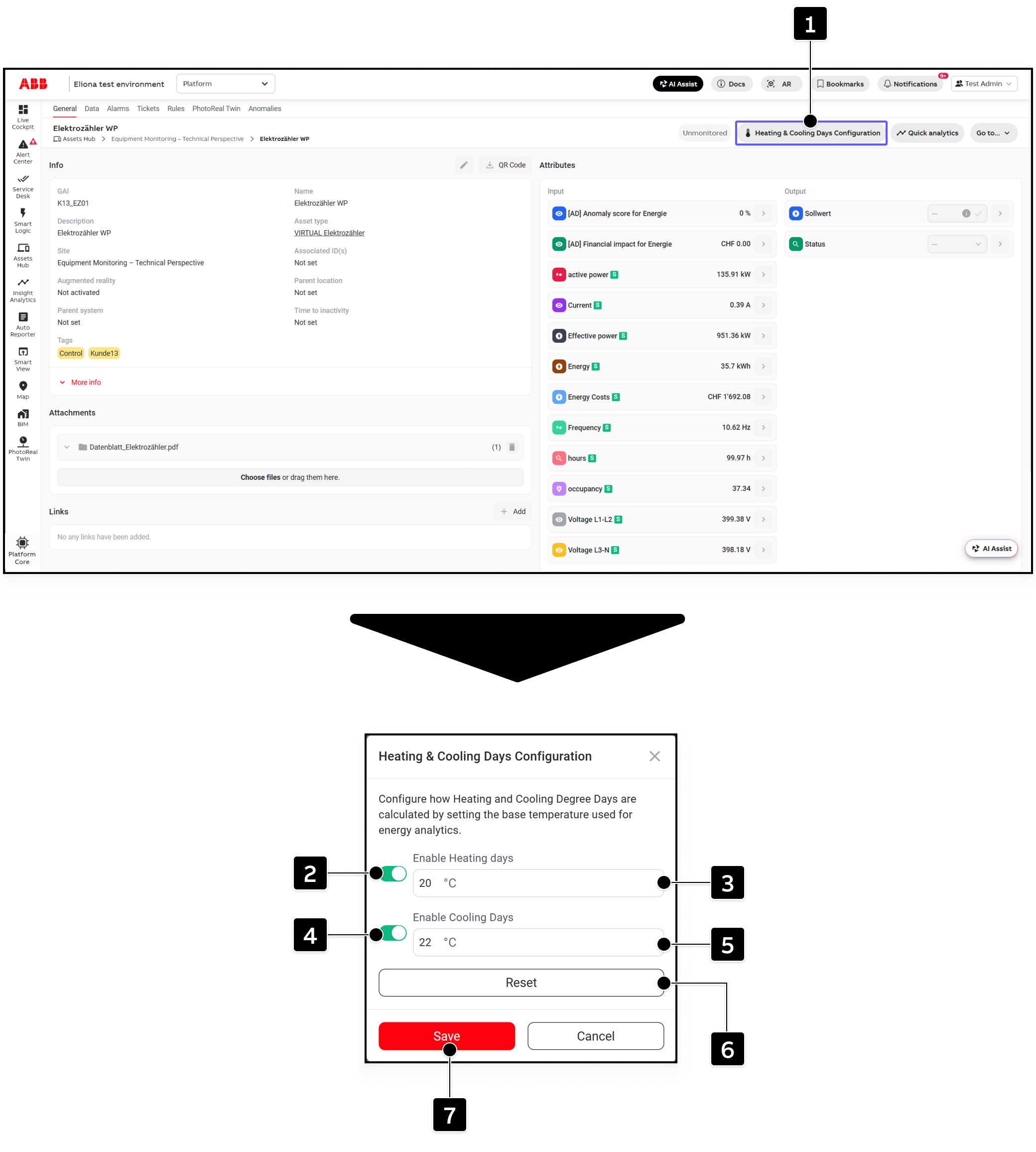
Open the required asset in [Asset Details](/collection/mandatory-base/assets/asset-details.md). Then click on *Heating & Cooling Days Configuration* **\[1]**.

<figure><img src="https://2013058394-files.gitbook.io/~/files/v0/b/gitbook-x-prod.appspot.com/o/spaces%2FOqGnkz52o2zVUsEGEZGk%2Fuploads%2Fgit-blob-5ac7d42227ba56c76ae5ee2cad484024b4e96b9c%2FOpen%20and%20configure%20Heating%20and%20coolind%20days%20Asset%20configuration.png?alt=media" alt="Asset Details with the Heating and Cooling Days Configuration button and configuration dialog marked"><figcaption></figcaption></figure>

## Configuration Controls

<table data-header-hidden data-search="false"><thead><tr><th width="55.5199580078125">Marking</th><th width="185">Control</th><th>Description</th></tr></thead><tbody><tr><td><strong>[1]</strong></td><td><strong>Heating &#x26; Cooling Days Configuration</strong></td><td>Opens the configuration dialog for the selected asset.</td></tr><tr><td><strong>[2]</strong></td><td><strong>Enable Heating days</strong></td><td>Enables the Heating Degree Days attribute for the asset type. The base temperature is initially filled from the tenant default.</td></tr><tr><td><strong>[3]</strong></td><td><strong>Heating days base temperature</strong></td><td>Sets an asset-specific Heating Days base temperature.</td></tr><tr><td><strong>[4]</strong></td><td><strong>Enable Cooling Days</strong></td><td>Enables the Cooling Degree Days attribute for the asset type. The base temperature is initially filled from the tenant default.</td></tr><tr><td><strong>[5]</strong></td><td><strong>Cooling days base temperature</strong></td><td>Sets an asset-specific Cooling Days base temperature.</td></tr><tr><td><strong>[6]</strong></td><td><strong>Reset</strong></td><td>Restores the tenant defaults and disables Heating Days and Cooling Days for this asset.</td></tr><tr><td><strong>[7]</strong></td><td><strong>Save</strong></td><td>Saves the asset configuration.</td></tr></tbody></table>

## Configure the Asset

1. Enable Heating Days with **\[2]** and, if needed, change the prefilled base temperature under **\[3]**.
2. Enable Cooling Days with **\[4]** and, if needed, change the prefilled base temperature under **\[5]**.
3. Click on **\[7]** to save the configuration.

Click on **\[6]** when you want to remove the asset-specific configuration, return to the tenant defaults, and disable both options.

{% hint style="info" %}
The value used for a calculation is the asset-specific base temperature when it is configured. Otherwise, the tenant default is used.
{% endhint %}

## Check the Created Attributes

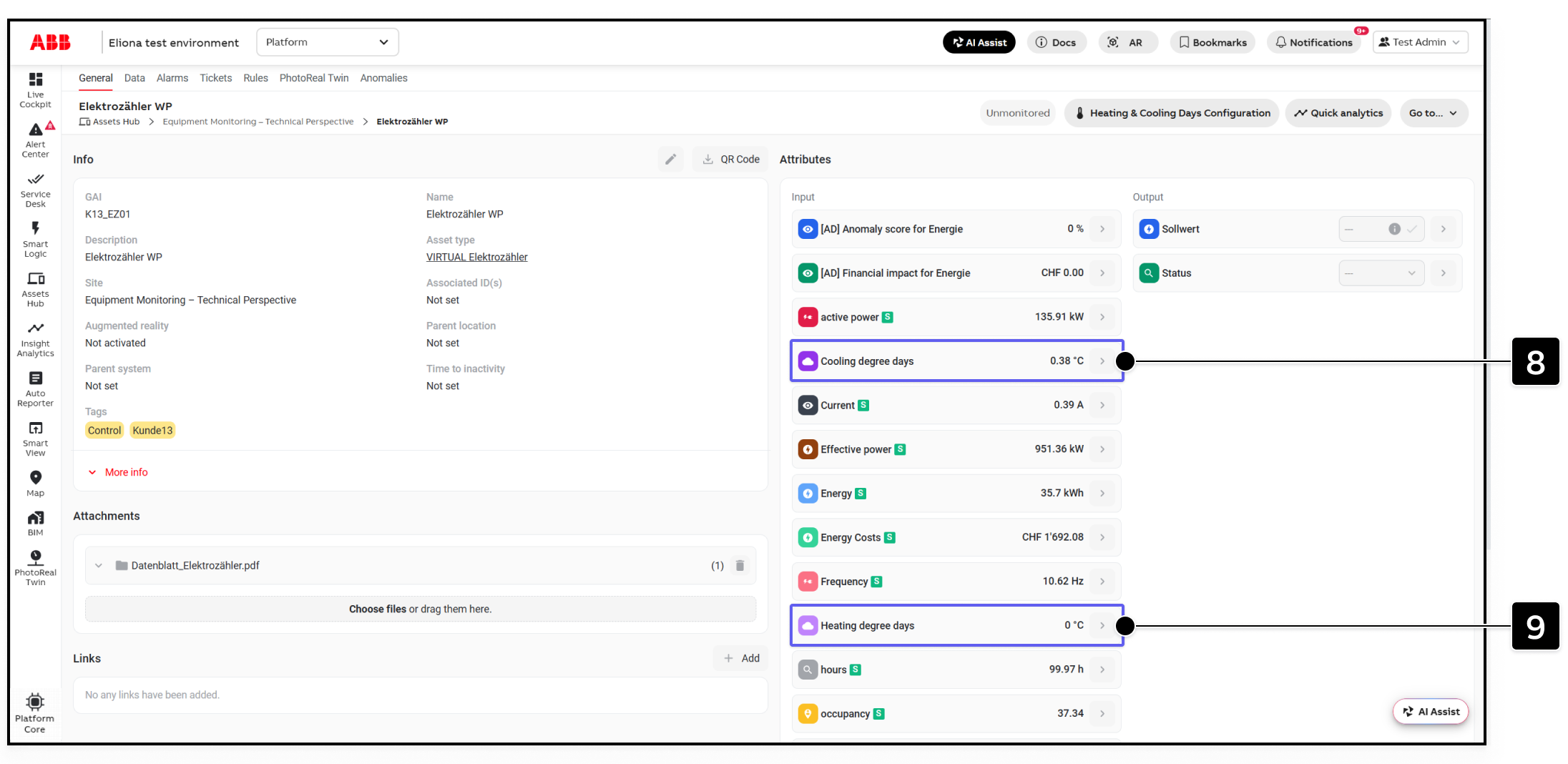
After saving, wait a few seconds and refresh the Asset Details page. The enabled attributes are created on the asset type and appear on the selected asset.

<figure><img src="https://2013058394-files.gitbook.io/~/files/v0/b/gitbook-x-prod.appspot.com/o/spaces%2FOqGnkz52o2zVUsEGEZGk%2Fuploads%2Fgit-blob-db4de9a42057fbad68707e7d6f531e0aa45eccfd%2FAttributes%20Heating%20and%20coolind%20days%20Asset%20details.png?alt=media" alt="Asset Details with the Cooling degree days and Heating degree days attributes marked"><figcaption></figcaption></figure>

<table data-header-hidden data-search="false"><thead><tr><th width="55.5199580078125">Marking</th><th width="185">Attribute</th><th>Description</th></tr></thead><tbody><tr><td><strong>[8]</strong></td><td><strong>Cooling degree days</strong></td><td>Hourly Cooling Degree Days value for the asset.</td></tr><tr><td><strong>[9]</strong></td><td><strong>Heating degree days</strong></td><td>Hourly Heating Degree Days value for the asset.</td></tr></tbody></table>

The service writes a new value to each enabled attribute once per hour. Because the attributes are created on the asset type, they may also appear on other assets with the same asset type. Those attributes can remain empty on other assets until Heating Days or Cooling Days is configured and calculated for the individual asset.

The hourly values are one twenty-fourth of the daily Degree Days. To view the Degree Days for a day, use [Asset Data](/collection/mandatory-base/assets/asset-data.md#display-aggregated-data), select the relevant attribute, set the aggregation interval to **Day**, and use the **Sum** aggregation.


---

# Agent Instructions
This documentation is published with GitBook. GitBook is the documentation platform designed so that both humans and AI agents can read, navigate, and reason over technical content effectively. Learn more at gitbook.com.

## Querying This Documentation
If you need additional information that is not directly available in this page, you can query the documentation dynamically by asking a question.

Perform an HTTP GET request on the current page URL with the `ask` query parameter, and the optional `goal` query parameter:

```
GET https://docs.buildings.ability.abb/collection/platform/platform-core/baseline-and-factors/heating-and-cooling-days/configure-heating-and-cooling-days-for-an-asset.md?ask=<question>&goal=<endgoal>
```

`ask` is the immediate question: it should be specific, self-contained, and written in natural language.
`goal` is optional and describes the broader end goal you are ultimately trying to accomplish on behalf of the user. GitBook uses it to tailor the answer towards what is most useful for that goal.

The response will contain a direct answer to the question and relevant excerpts and sources from the documentation.

Use this mechanism when the answer is not explicitly present in the current page, you need clarification or additional context, or you want to retrieve related documentation sections.