# User Interface Elements

## Switches

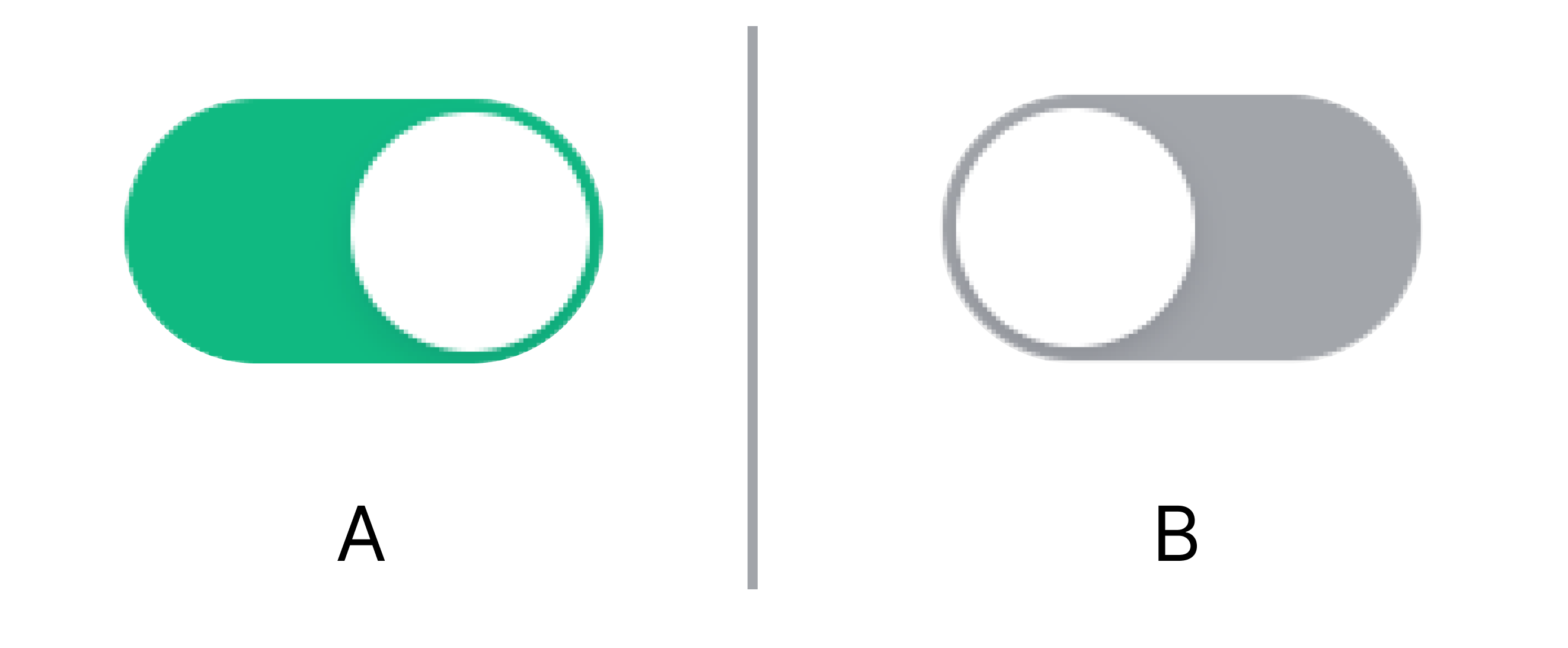
<figure><img src="https://3489494878-files.gitbook.io/~/files/v0/b/gitbook-x-prod.appspot.com/o/spaces%2F9GvUpaatBiReR43XFSMg%2Fuploads%2FnrvFNzIvjKt3lrzQXaKb%2FDocs_Interface%20-%20Schalter.png?alt=media&#x26;token=e4cb61f2-d025-47a8-9c4d-5dcbe7103762" alt="" width="375"><figcaption><p>A – Switch in "ON" state, B – Switch in "OFF" state</p></figcaption></figure>

Switches can change between two states.

Click on a switch to change its state.

## Search Function

<div data-full-width="true"><figure><img src="https://3489494878-files.gitbook.io/~/files/v0/b/gitbook-x-prod.appspot.com/o/spaces%2F9GvUpaatBiReR43XFSMg%2Fuploads%2Fj9YH55bnhyDCIyEuBYbF%2FDocs%20-%20Search%20Maps.png?alt=media&#x26;token=b594deee-6e94-4763-b896-85f7abd3ff4b" alt=""><figcaption></figcaption></figure></div>

BuildingPro Suites has a powerful and very useful search function. You can open the search function at any time by clicking **\[A]** in the[ ↗ context bar](https://docs.buildings.ability.abb/collection/the-interface#context-bar).

This opens the search bar **\[B]**. In the search bar, you can search the contents of the corresponding menu.

The exact content of the search bar depends on the menu you are in.

### Tags Filtering

When you search for [↗ entities](https://docs.buildings.ability.abb/collection/glossary#entities) that are tagged, you can filter the search results by one or more tags. In this case, only search results that match the selected tags are displayed.

If you have selected multiple tags, you can choose the filtering logic in field **\[B1]**:

* One of the Selected: All entities that match a single one of the selected tags are displayed.
* All of the Selected: Only entities that match *all* of the selected tags are displayed.

<table><thead><tr><th width="97.33333333333331">Element</th><th width="246.5999755859375">Title</th><th>Details</th></tr></thead><tbody><tr><td><strong>[A]</strong></td><td>Open Search/Close Search</td><td>If the search bar is <em>not</em> open: open search bar<br>If the search bar is open: close search bar</td></tr><tr><td><strong>[B]</strong></td><td>Search bar</td><td>Enter search parameters</td></tr><tr><td><strong>[C]</strong></td><td>Section "Tags Filtering"</td><td>Filter search using tags</td></tr><tr><td><strong>[C1]</strong></td><td>Select logic</td><td>See above</td></tr><tr><td><strong>[C2]</strong></td><td>Select tag(s)</td><td>Select the tags you want to filter by here</td></tr><tr><td><strong>[C3]</strong></td><td>Selected tags</td><td>The selected tags are displayed here</td></tr></tbody></table>

## Dragging Elements

<figure><img src="https://3489494878-files.gitbook.io/~/files/v0/b/gitbook-x-prod.appspot.com/o/spaces%2F9GvUpaatBiReR43XFSMg%2Fuploads%2FvLzXDe2sPnYeVOGAfbCn%2FDocs_Interface%20-%20Hamburger.png?alt=media&#x26;token=5ce97406-7493-4bfc-98a0-f1086adb9a5e" alt="" width="188"><figcaption></figcaption></figure>

When you see this symbol, you can drag an element using [↗ Drag'n'Drop](#dragn-drop) .

## Arranging Elements

<figure><img src="https://3489494878-files.gitbook.io/~/files/v0/b/gitbook-x-prod.appspot.com/o/spaces%2F9GvUpaatBiReR43XFSMg%2Fuploads%2FYpcv4A9RYFqsKy1ZAnti%2FDocs_Interface%20-%20Sortieren.png?alt=media&#x26;token=0284b579-d14b-4848-a6d3-69a4e32dc47f" alt=""><figcaption></figcaption></figure>

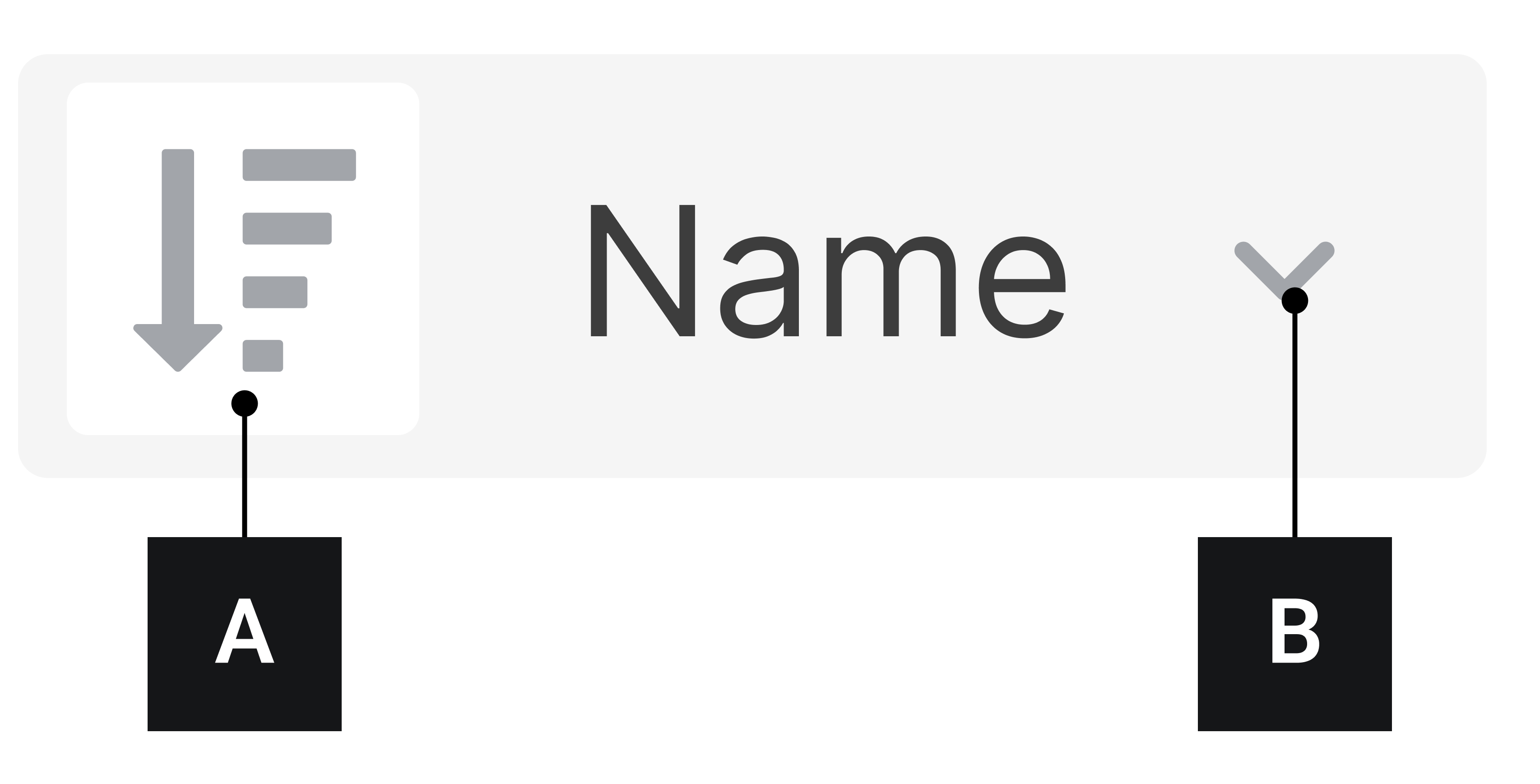
When you see this symbol, you can sort a list of elements by various properties.

Click **\[A]** to determine whether to sort in ascending or descending order.

Click **\[B]** to specify the sorting criterion.

## Edit

<figure><img src="https://3489494878-files.gitbook.io/~/files/v0/b/gitbook-x-prod.appspot.com/o/spaces%2F9GvUpaatBiReR43XFSMg%2Fuploads%2FALzX43i8OgirSBNOFSX1%2FDocs_Interface%20-%20Bearbeiten.png?alt=media&#x26;token=645b48fa-8a14-49e4-8a22-aa6cfb174f2f" alt="" width="188"><figcaption></figcaption></figure>

This symbol indicates that you can edit an element's data.

Click this symbol to edit an element's data.

## More Options (Meatball Menu)

<figure><img src="https://3489494878-files.gitbook.io/~/files/v0/b/gitbook-x-prod.appspot.com/o/spaces%2F9GvUpaatBiReR43XFSMg%2Fuploads%2Fa5SJXRp9s6KpQa6VO0r0%2FDocs_Interface%20-%20MehrOptionen.png?alt=media&#x26;token=2eaa5441-930b-4775-a4e4-eab36cb41db3" alt="" width="188"><figcaption></figcaption></figure>

The meatball menu indicates that more options are available for an element.

Click the meatball menu to open a list of available options.

## GAI

<figure><img src="https://3489494878-files.gitbook.io/~/files/v0/b/gitbook-x-prod.appspot.com/o/spaces%2F9GvUpaatBiReR43XFSMg%2Fuploads%2FY77MJayqUlLtbVfOkyns%2FDocs_Interface%20-%20GAI.png?alt=media&#x26;token=e77d4c33-af1a-4f74-98d7-56bbfb909f66" alt="" width="188"><figcaption></figcaption></figure>

Click this symbol to display the [↗ GAI](https://docs.buildings.ability.abb/collection/glossary#gai) of an element.

## Trash Can

<figure><img src="https://3489494878-files.gitbook.io/~/files/v0/b/gitbook-x-prod.appspot.com/o/spaces%2F9GvUpaatBiReR43XFSMg%2Fuploads%2FRpM6XhXJx6GkUqPLEolY%2FDocs_Interface%20-%20Tonne.png?alt=media&#x26;token=5f29c619-17c2-4691-abd0-e7a671b75d04" alt="" width="188"><figcaption></figcaption></figure>

Click this symbol to delete or [-> archive](https://docs.buildings.ability.abb/collection/mandatory-base/assets/archive-assets) an element.

## Expanding Elements

<figure><img src="https://3489494878-files.gitbook.io/~/files/v0/b/gitbook-x-prod.appspot.com/o/spaces%2F9GvUpaatBiReR43XFSMg%2Fuploads%2F8yb7LwWiCy9Ya1Ypwb2l%2FDocs_Interface%20-%20Aufklappen.png?alt=media&#x26;token=47f6531c-01d6-408a-b65d-3a7a2436f837" alt="" width="188"><figcaption></figcaption></figure>

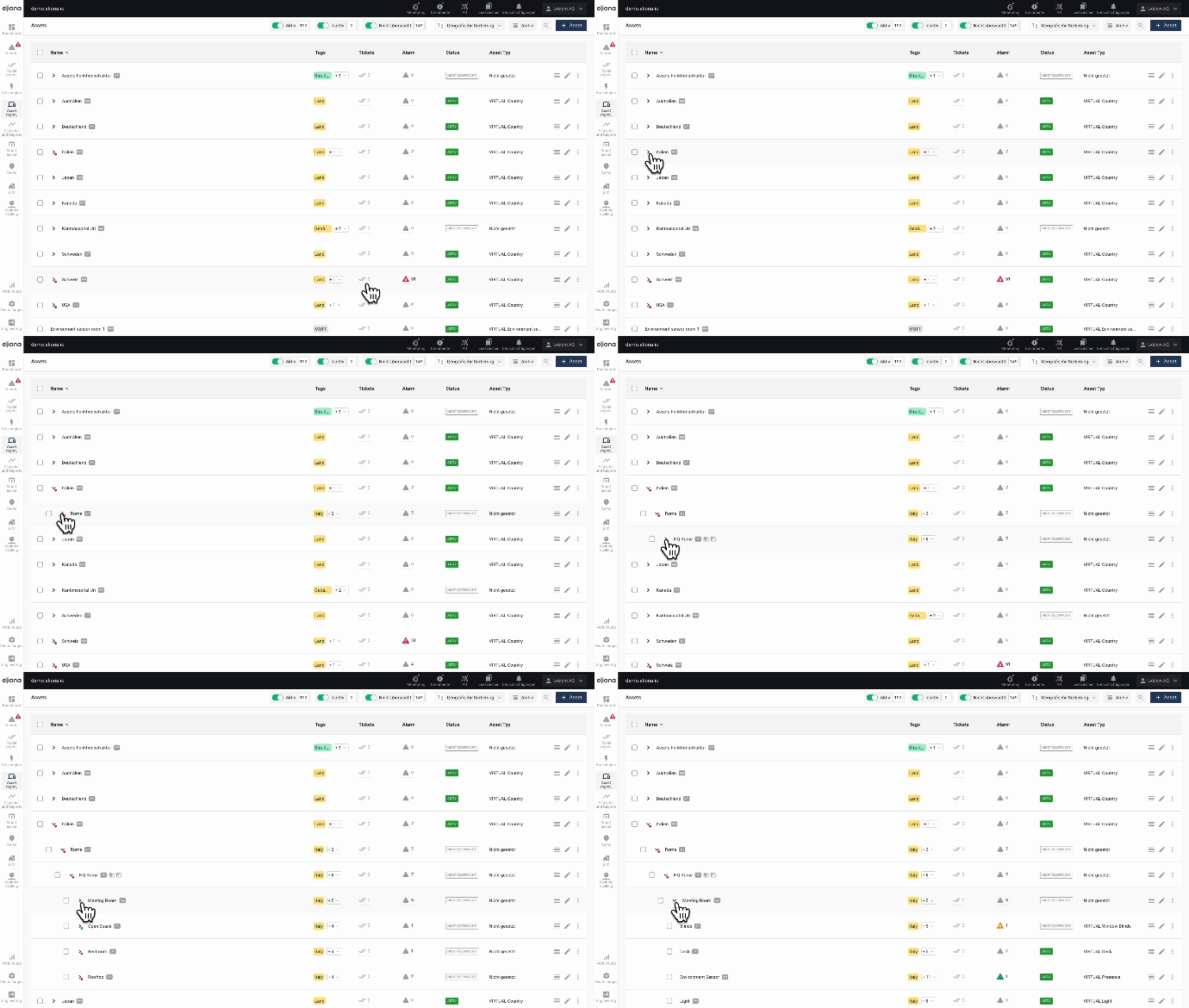
Elements with this symbol contain subordinate elements. Such elements can be expanded to show the subordinate elements.

Click this symbol to expand an element.

<div data-full-width="true"><figure><img src="https://3489494878-files.gitbook.io/~/files/v0/b/gitbook-x-prod.appspot.com/o/spaces%2F9GvUpaatBiReR43XFSMg%2Fuploads%2FzKiT0lt0kkNiHNdt3Trx%2Faufklappen.gif?alt=media&#x26;token=de572b68-841b-4fc0-9556-fcd9fed055fc" alt=""><figcaption></figcaption></figure></div>

## Folders

<figure><img src="https://3489494878-files.gitbook.io/~/files/v0/b/gitbook-x-prod.appspot.com/o/spaces%2F9GvUpaatBiReR43XFSMg%2Fuploads%2FiNuGJ9upXwkQXLCRPJhO%2FDocs_Interface%20-%20Ordner.png?alt=media&#x26;token=d364256c-b5c5-459f-bd51-592e73edae1e" alt="" width="188"><figcaption></figcaption></figure>

Folders in BuildingPro Suites function like folders in your operating system. You can organize assets into folders by dragging them into the folders using [-> Drag'n'Drop](#dragn-drop).

You can also drag folders into other folders.

## Floors

This symbol indicates that an asset is a [↗ Floor](https://docs.buildings.ability.abb/collection/platform/map-and-floor/floor).

Click this symbol to open the floor.

<figure><img src="https://3489494878-files.gitbook.io/~/files/v0/b/gitbook-x-prod.appspot.com/o/spaces%2F9GvUpaatBiReR43XFSMg%2Fuploads%2FEaSI5scwSRXATtPEwh7R%2FDocs_Interface%20-%20Stockwerk.png?alt=media&#x26;token=fe8b6cce-a9b0-4103-892d-33ae1b5af67f" alt="" width="188"><figcaption></figcaption></figure>

## Drag'n'Drop

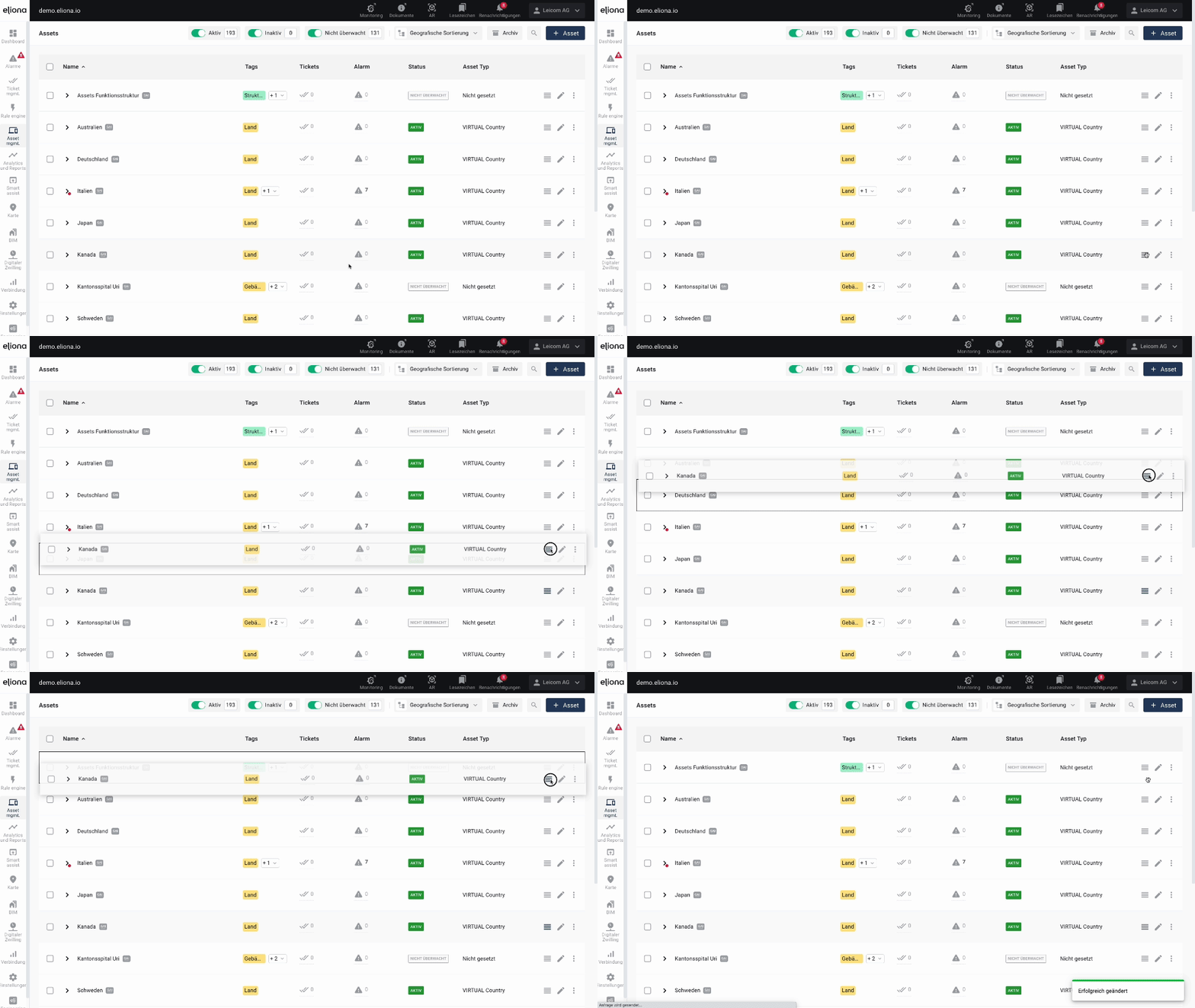
<div data-full-width="true"><figure><img src="https://3489494878-files.gitbook.io/~/files/v0/b/gitbook-x-prod.appspot.com/o/spaces%2F9GvUpaatBiReR43XFSMg%2Fuploads%2FqN9v8ZVpWxHWWE9yBDZJ%2FDrag%20n%20drop.gif?alt=media&#x26;token=a073d0e9-2aa6-4aa0-8681-c53f6dee00fb" alt=""><figcaption><p>An asset is dragged onto another asset via Drag'n'Drop.</p></figcaption></figure></div>

Click the [↗ "Hamburger" symbol](https://docs.buildings.ability.abb/collection/preface/user-interface-elements) with the left mouse button. Hold the mouse button down and drag the element. Release the mouse button to place the element.

## Asset Search

<figure><img src="https://3489494878-files.gitbook.io/~/files/v0/b/gitbook-x-prod.appspot.com/o/spaces%2F9GvUpaatBiReR43XFSMg%2Fuploads%2FpfHYdzH18NxzACMi2rl6%2Fimage.png?alt=media&#x26;token=ab115ee6-36c2-4b18-8bdc-72a277ba2b85" alt=""><figcaption></figcaption></figure>

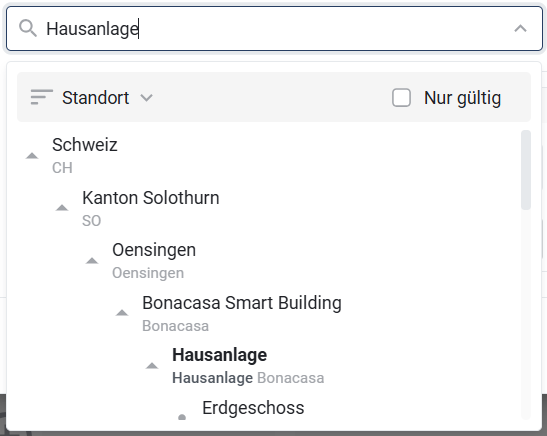
At many points in *BuildingPRO® Suites*, assets can be searched for and selected. A convenient asset search is available for this. It displays the **Asset Name** and below it the corresponding **GAI**.

The assets are displayed in a **geographical structure** that can be expanded by clicking on the triangle symbol. With the **Only valid** option, only those assets that are relevant for the selection can be displayed. Non-selectable assets are **greyed out** and thus clearly recognizable.

## Breadcrumbs

<div data-full-width="true"><figure><img src="https://3489494878-files.gitbook.io/~/files/v0/b/gitbook-x-prod.appspot.com/o/spaces%2F9GvUpaatBiReR43XFSMg%2Fuploads%2FJPIl9d0t4Ig2Rflt7ON4%2FDocs-Breadcrumbs.png?alt=media&#x26;token=0a3f44b9-5d57-4c69-9297-5cc281874d36" alt=""><figcaption></figcaption></figure></div>

"Breadcrumbs" show you where you are within the website structure. The breadcrumbs are a horizontal series of text links in the [↗ context bar](https://docs.buildings.ability.abb/collection/the-interface#context-bar). Click on a link to go to the corresponding menu.