> For the complete documentation index, see [llms.txt](https://docs.buildings.ability.abb/collection/llms.txt). Markdown versions of documentation pages are available by appending `.md` to page URLs; this page is available as [Markdown](https://docs.buildings.ability.abb/collection/english-v14/documentation/alarme-regeln-und-eskalationen/alarme.md).

# Alarms

## The alarm overview

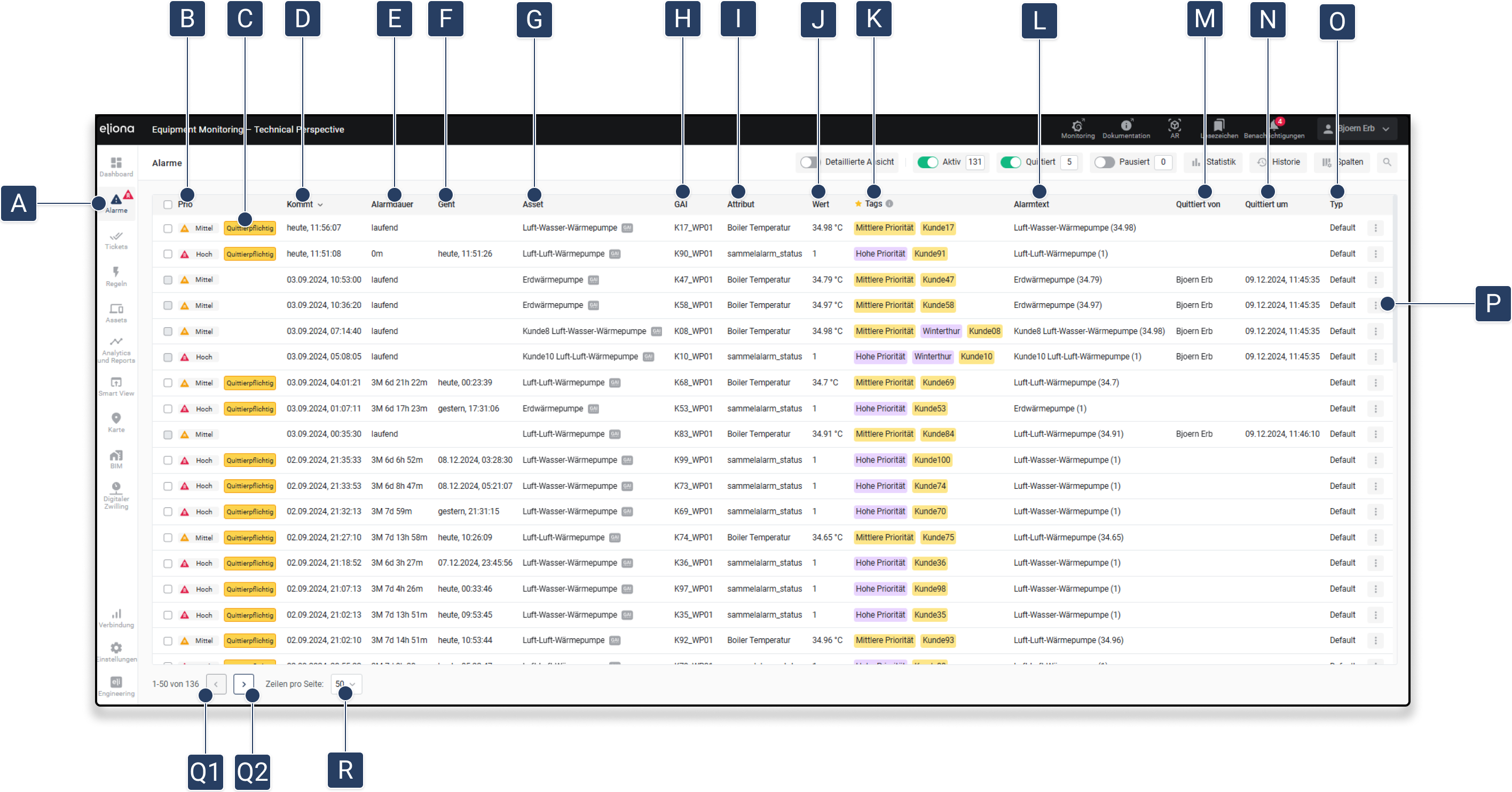
Click in the sidebar on **\[A]**, to open the alarm overview. In the alarm overview, you see a list of all pending alarms.

<div data-full-width="true"><figure><img src="https://content.gitbook.com/content/Nyvwhz1kEMXcHf4HLuZ8/blobs/dmyTWc1IIuVMUo9qnDNM/Alarm%20Details%20List.png" alt=""><figcaption><p><em>Fig. 1 – The alarm overview (normal view)</em></p></figcaption></figure></div>

<figure><img src="https://content.gitbook.com/content/Nyvwhz1kEMXcHf4HLuZ8/blobs/kyJl6GOjSkDxWalBJZUK/Alarm%20Gehe%20zu%20(1).png" alt=""><figcaption></figcaption></figure>

<div data-full-width="true"><figure><img src="https://content.gitbook.com/content/Nyvwhz1kEMXcHf4HLuZ8/blobs/AtpPJQhgRl852IMBYzxC/Alarm%20Details%20List.png" alt=""><figcaption></figcaption></figure></div>

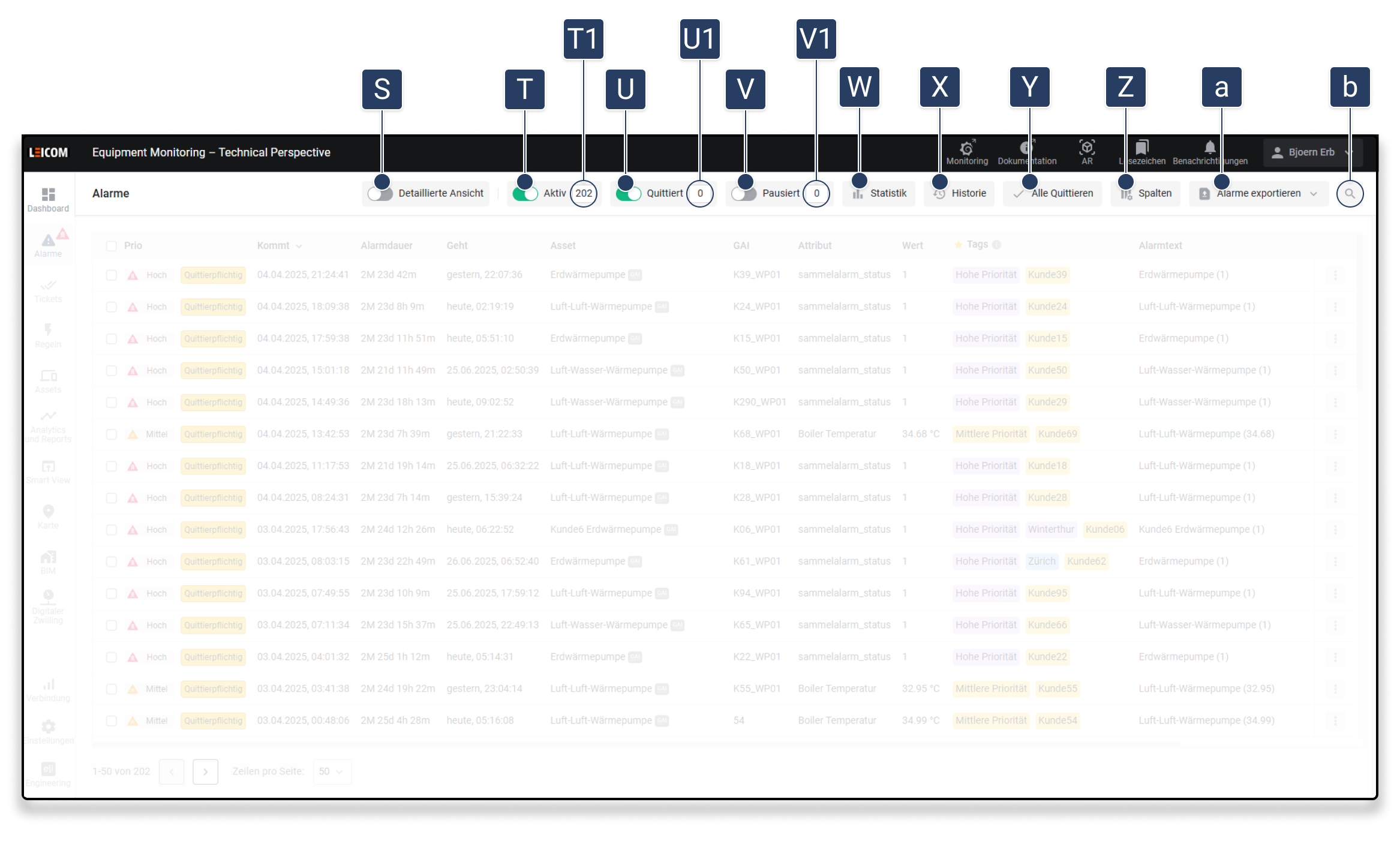
<table data-full-width="true"><thead><tr><th width="107.33333333333331">Element</th><th width="239">Title</th><th>Details</th></tr></thead><tbody><tr><td><strong>[A]</strong></td><td>Menu item “Alarms”</td><td>Click to open the alarm overview. The icon on the menu item <img src="https://content.gitbook.com/content/Nyvwhz1kEMXcHf4HLuZ8/blobs/HgZLxdUWivlgghbVl8Kh/image.png" alt="" data-size="line"> has the color of the alarm with the highest priority and disappears when no alarms are active.</td></tr><tr><td><strong>[B]</strong></td><td>Column "Priority"</td><td>Shows the priority of the alarm. Note: The priority is set when <a href="/collection/english-v14/documentation/alarme-regeln-und-eskalationen/regeln/eine-regel-erstellen.md">↗ Creating a rule</a> is set</td></tr><tr><td><strong>[C]</strong></td><td>Acknowledgment requirement indicator</td><td>Appears when an alarm <a href="/collection/english-v14/documentation/alarme-regeln-und-eskalationen/alarme/quittierpflichtige-und-gehende-alarme.md">↗ Requires acknowledgment</a> is</td></tr><tr><td><strong>[D]</strong></td><td>Column “Starts”</td><td>Indicates when the alarm was triggered</td></tr><tr><td><strong>[E]</strong></td><td>Column “Alarm duration”</td><td>If an alarm has disappeared again: Shows how long the alarm was present</td></tr><tr><td><strong>[F]</strong></td><td>Column “Ends”</td><td>Indicates when the alarm stopped being triggered.</td></tr><tr><td><strong>[G]</strong></td><td>Column “Asset”</td><td>Shows which asset was affected by the alarm</td></tr><tr><td><strong>[H]</strong></td><td>Column “GAI”</td><td>Shows the GAI of the asset for which the alarm was triggered</td></tr><tr><td><strong>[I]</strong></td><td>Column “Attribute”</td><td>Shows which attribute was affected by the alarm</td></tr><tr><td><strong>[J]</strong></td><td>Column “Value”</td><td>Shows the value</td></tr><tr><td><strong>[K]</strong></td><td>Column "Tags"</td><td>Shows the tags assigned to the rule by which the alarm was created ◈ Only tags are shown that are in a category that is marked as <a href="/collection/english-v14/documentation/tags.md#kategorien-als-favorit-markieren">↗ Favorite marked </a>was. For more information, see <a href="#darstellung-von-tags">↗ Displaying tags</a></td></tr><tr><td><strong>[L]</strong></td><td>Column “Alarm text”</td><td>Displays the notification ◈ Note: The content of the notification can be defined when <a href="/collection/english-v14/documentation/alarme-regeln-und-eskalationen/regeln/eine-regel-erstellen.md">↗ Creating a rule</a> defined.</td></tr><tr><td><strong>[M]</strong></td><td>Column “Acknowledged by…”</td><td>Indicates who acknowledged the corresponding alarm <a href="/collection/english-v14/documentation/alarme-regeln-und-eskalationen/alarme/quittierpflichtige-und-gehende-alarme.md">↗ Acknowledged</a> has</td></tr><tr><td><strong>[N]</strong></td><td>Column “Acknowledged at”</td><td>Shows when the alarm was acknowledged.</td></tr><tr><td><strong>[O]</strong></td><td>Column “Type”</td><td>Here the type defined in the rule is displayed <a href="/collection/english-v14/documentation/alarme-regeln-und-eskalationen/regeln/eine-regel-erstellen.md">↗ Creating a rule</a>.</td></tr><tr><td><strong>[P]</strong></td><td>More options</td><td>Displays further options for the corresponding alarm</td></tr><tr><td><strong>[P1]</strong></td><td>Menu “More options”</td><td>More options for the corresponding alarm</td></tr><tr><td><strong>[P2]</strong></td><td>Go to…</td><td>Click to access items M9 to M14.</td></tr><tr><td><strong>[P3]</strong></td><td>Asset links</td><td>Click to display the links assigned to the asset https://doc.eliona.io/collection/dokumentation/assets/einem-asset-links-hinzufuegen</td></tr><tr><td><strong>[P4]</strong></td><td>Add bookmark</td><td>A <a href="/collection/english-v14/documentation/weitere-funktionen/lesezeichen.md">↗ Bookmark</a> create for this alarm</td></tr><tr><td><strong>[P5]</strong></td><td>Asset history</td><td>Display the alarm history for the respective asset</td></tr><tr><td><strong>[P6]</strong></td><td>Acknowledge alarm</td><td>Acknowledge the corresponding alarm</td></tr><tr><td><strong>[P7]</strong></td><td>Acknowledge with comment / logbook</td><td>Acknowledge an alarm and add a comment. If an alarm has already been acknowledged with a comment, the option “Logbook” appears. The logbook shows the comment that is entered when an alarm is acknowledged with comment</td></tr><tr><td><strong>[P8]</strong></td><td>Create ticket</td><td>A<a href="/collection/english-v14/documentation/widgets/benutzerdefinierte-widgets/module/ticket.md"> ↗ Ticket </a>create for the corresponding alarm</td></tr><tr><td><strong>[P9]</strong></td><td>Go to ticket</td><td>Go to the ticket for the corresponding alarm</td></tr><tr><td><strong>[P10]</strong></td><td>Go to rule</td><td>Display the rule that triggered the corresponding alarm</td></tr><tr><td><strong>[P11]</strong></td><td>Go to asset</td><td>Opens the asset details of the corresponding asset.</td></tr><tr><td><strong>[P12]</strong></td><td>Go to asset on the map</td><td>Shows the corresponding asset on the <a href="/collection/english-v14/documentation/karte-und-stockwerk/karte.md">↗ map</a> displayed. ◈ If no position is assigned to the asset, the map opens in the <a href="/collection/english-v14/documentation/karte-und-stockwerk/karte.md#standard-kartenausschnitt-festlegen">↗ default map section</a></td></tr><tr><td><strong>[P13]</strong></td><td>Go to BIM</td><td>The <a href="/collection/english-v14/documentation/bim.md">↗ BIM</a> open for the corresponding asset. ◈ If no BIM is assigned to the asset, the BIM menu is opened.</td></tr><tr><td><strong>[P14]</strong></td><td>Go to digital twin</td><td>The <a href="/collection/english-v14/documentation/digitaler-zwilling.md">↗ Digital twin</a> of the corresponding asset</td></tr><tr><td><strong>[Q1]</strong></td><td>Back</td><td>Turn back one page</td></tr><tr><td><strong>[Q1]</strong></td><td>Previous</td><td>Turn forward one page</td></tr><tr><td><strong>[R]</strong></td><td>Rows</td><td>Select how many alarms are displayed on one page</td></tr><tr><td><strong>[S]</strong></td><td>Switch “Detailed overview”</td><td>If this switch is <strong>ON</strong> is: the detailed overview is displayed</td></tr><tr><td><strong>[T]</strong></td><td>Switch “Active alarms</td><td>If this switch <strong>ON</strong> is: Active alarms are shown. If this switch <strong>OFF</strong> is: Active alarms are hidden</td></tr><tr><td><strong>[T1]</strong></td><td>Number “Active alarms</td><td>Shows how many alarms are active</td></tr><tr><td><strong>[U]</strong></td><td>Switch “Acknowledged alarms</td><td>If this switch <strong>ON</strong> is: Acknowledged alarms are shown. If this switch <strong>OFF</strong> is: Acknowledged alarms are hidden</td></tr><tr><td><strong>[U1]</strong></td><td>Number “acknowledged alarms</td><td>Shows how many alarms are acknowledged</td></tr><tr><td><strong>[V]</strong></td><td>Switch “Paused alarms</td><td>If this switch <strong>ON</strong> is: Paused alarms are shown. If this switch <strong>OFF</strong> is: Paused alarms are hidden</td></tr><tr><td><strong>[V1]</strong></td><td>Number “Paused alarms</td><td>Shows how many alarms are paused</td></tr><tr><td><strong>[W]</strong></td><td>Alarm statistics</td><td>Calls up the <a href="/collection/english-v14/documentation/alarme-regeln-und-eskalationen/alarme/alarmstatistik.md">↗ Alarm statistics</a> on</td></tr><tr><td><strong>[X]</strong></td><td>History</td><td>Displays the <a href="#alarm-historie">↗ alarm history</a> at</td></tr><tr><td><strong>[Y]</strong></td><td>Acknowledge all</td><td>Acknowledges all active alarms at once.<br>After clicking, a dialog opens in which a comment can optionally be entered.<br>Only alarms requiring acknowledgment are considered.</td></tr><tr><td><strong>[Z]</strong></td><td>Columns</td><td>Opens a menu that can be used to show and hide the various columns</td></tr><tr><td><strong>[a]</strong></td><td>Export alarms</td><td>Exports the current alarm overview as a file.<br>The following are available:<br>– CSV format<br>– XLSX format (Excel-compatible)<br>The export file contains all visible columns in the current view.</td></tr><tr><td><strong>[b]</strong></td><td>Search</td><td>Search in the alarms</td></tr></tbody></table>

## Customize view

You can adapt the display of the alarms to your requirements. To do this, click on column **\[W]**

### Show/hide columns

Use the [↗ switch](/collection/english-v14/documentation/widgets/vordefinierte-widgets/schalter.md), to show or hide individual columns.

### Arrange columns

You can use [↗ Drag and drop](/collection/english-v14/preface/bedienelemente.md#dragn-drop) to arrange

## Displaying tags

* In the “Tags” column **\[J]** the tags assigned to the rule by which the alarm was created are displayed.
* In the normal view, only tags for alarms are displayed that are in a category and this category is marked as [↗ Favorite](/collection/english-v14/documentation/tags.md#kategorien-als-favorit-markieren) marked.
* If several tags are displayed that are in different categories, you can adjust the order. See [↗ Change order](/collection/english-v14/documentation/tags.md#kategorien-in-eine-reihenfolge-bringen) of the displayed tags.
* To display all tags assigned to an alarm, activate the [↗ Detailed view](#detaillierte-ansicht)

### Change the order of the displayed tags

You can customize the order in which the tags are displayed. To do this, you must arrange the categories in the desired order in tag management.

Proceed as [↗ here *\[Tags -> ## Arrange categories in order* *\]*](/collection/english-v14/documentation/tags.md#kategorien-in-eine-reihenfolge-bringen) described.

## Detailed view

Click on **\[Q]**, to open the detailed view.

## Alarm history

<figure><img src="https://content.gitbook.com/content/Nyvwhz1kEMXcHf4HLuZ8/blobs/yATA0EhPuH0QKUAY1nIJ/Docs_Alarme%204%20-%20Alarm-Historie.png" alt=""><figcaption></figcaption></figure>

In the alarm history, all past alarms as well as acknowledged alarms appear. Entries from the alarm history cannot be deleted.

### Open alarm history

1. Go to the[ ↗ alarm overview](#die-alarm-uebersicht) on
2. Click on **\[V]**\
   ▷ The alarm history opens.

### Operate alarm history

The alarm history is operated using the same controls as the alarm overview

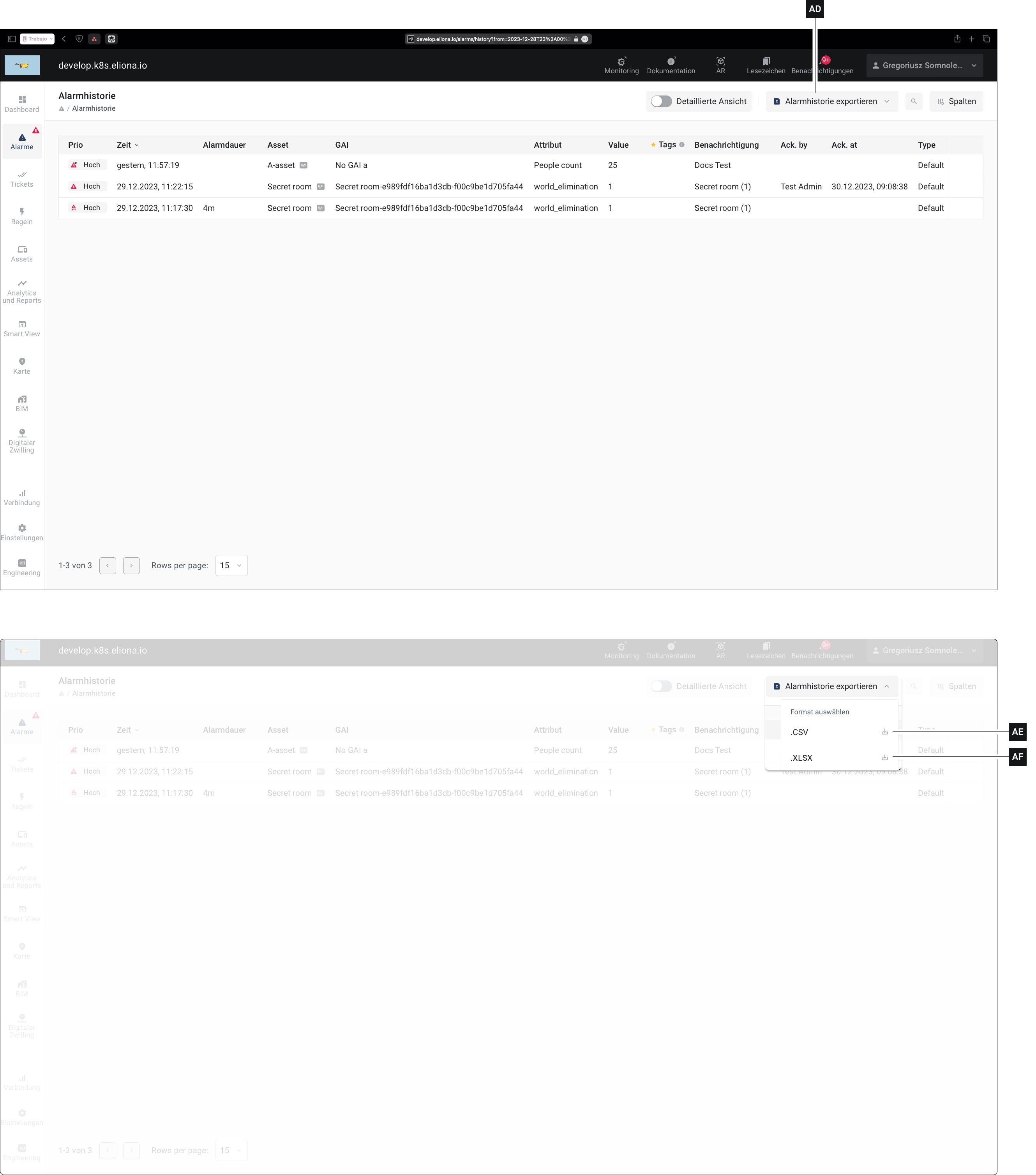
### Export alarm history

1. Open the alarm history
2. Click on **\[AD]**
3. Click on **AE** or **AF** to download the alarm history as a .csv or .xlsx file.


---

# Agent Instructions
This documentation is published with GitBook. GitBook is the documentation platform designed so that both humans and AI agents can read, navigate, and reason over technical content effectively. Learn more at gitbook.com.

## Querying This Documentation
If you need additional information that is not directly available in this page, you can query the documentation dynamically by asking a question.

Perform an HTTP GET request on the current page URL with the `ask` query parameter, and the optional `goal` query parameter:

```
GET https://docs.buildings.ability.abb/collection/english-v14/documentation/alarme-regeln-und-eskalationen/alarme.md?ask=<question>&goal=<endgoal>
```

`ask` is the immediate question: it should be specific, self-contained, and written in natural language.
`goal` is optional and describes the broader end goal you are ultimately trying to accomplish on behalf of the user. GitBook uses it to tailor the answer towards what is most useful for that goal.

The response will contain a direct answer to the question and relevant excerpts and sources from the documentation.

Use this mechanism when the answer is not explicitly present in the current page, you need clarification or additional context, or you want to retrieve related documentation sections.